How to See Your Team’s AI Spend: Cursor, Claude Code, Codex, and Copilot in One View
- Category
- AI SpendAI spendCursor
- Published
- Read time
- 7 min
- Written by
- Dinuda Yaggahavita
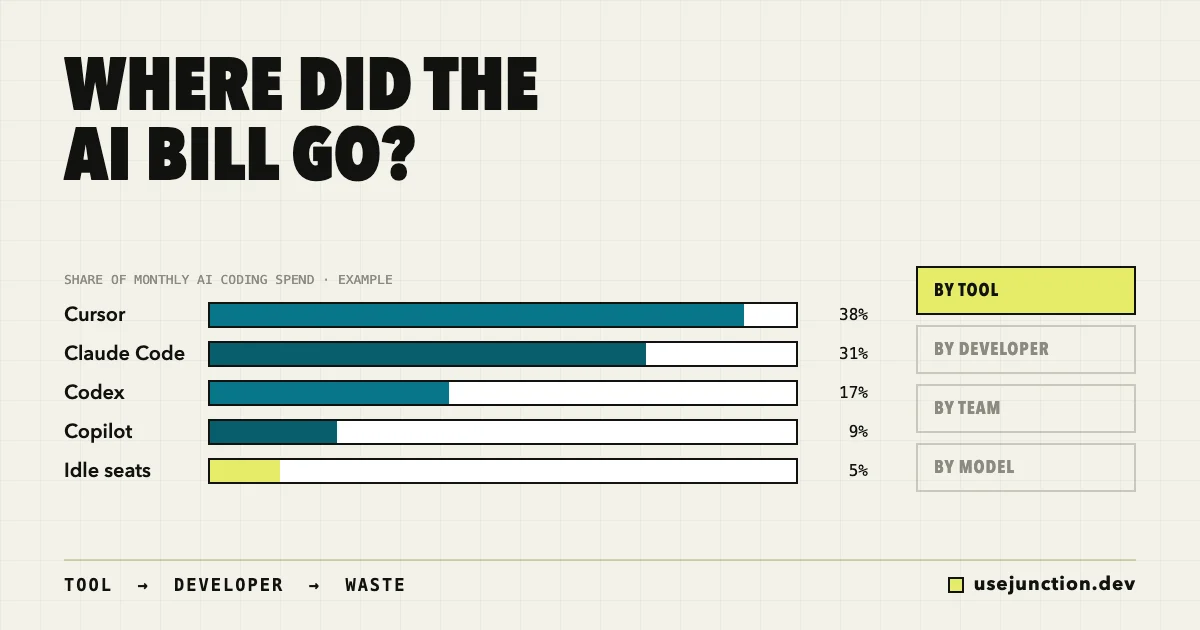
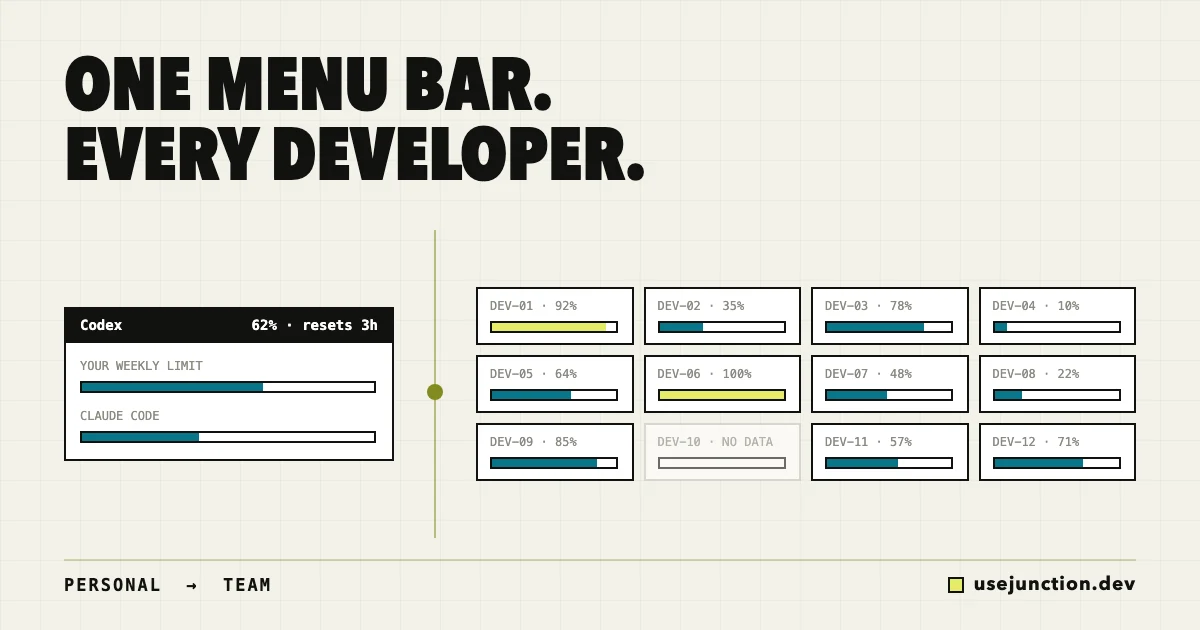
To see your team’s AI spend, list every AI coding tool you pay for, split the cost into seats and usage-based charges, then match each against real usage per developer. Vendor dashboards each show one tool. To see all of them together, enroll developer devices with a local agent, as UseJunction does, so cost, plan utilization, and idle seats appear in one dashboard by tool, developer, team, and model.
Key takeaways
- AI coding spend is spread across seats, usage-based billing, and personal accounts, so no single invoice shows the total.
- Start with an inventory: every tool, every plan, and whether it is billed per seat or per use.
- A seat count is not usage. Compare what you pay for to what each developer actually uses.
- Usage-based charges need attribution by developer, team, and model, or the bill is impossible to explain.
- Check coverage first, so a laptop that never reported is not mistaken for a developer who uses nothing.
Finance forwards you the invoices and asks a simple question: “What are we actually paying for AI coding, and who is using it?”
Most engineering leads cannot answer that in under a day. The answer is spread across Cursor, Claude Code, Codex, Copilot, and whatever developers bought on their own cards. This post shows how to put it together, what to look for, and how to make it a thing you check, not a thing you rebuild before every renewal.
Why is AI coding spend so hard to see?
- Every vendor bills separately. There is no combined invoice, and each dashboard shows only its own product.
- Seats and usage are mixed. Some tools charge a flat seat price, some charge per token or request, and many do both.
- Admin APIs are uneven. Team-wide usage data is often limited to higher plans.
- Personal accounts are invisible. A developer on their own Claude or ChatGPT plan never shows up on a company invoice.
- Agent workflows change the math. A long agent run can cost far more than autocomplete, and a seat price hides that until the bill arrives.
What should you measure?
Four numbers answer most spend questions. Get these before you build anything else:
- Total spend by tool. Seats plus usage charges, per month, for every product.
- Spend by developer and team. Where the money concentrates, and whether that matches where the work is.
- Seat utilization. Paid seats compared to seats with real activity this billing cycle.
- Coverage. How many developers you can actually see. Missing data looks exactly like zero usage.
How do you see your team’s AI spend by hand?
If you want to start today with no new tool, this works for a small team:
- 1. List every tool. Ask each developer, then check card statements for personal subscriptions expensed back.
- 2. Export each invoice. Split the lines into seats and usage-based charges.
- 3. Pull usage per user. Use each vendor’s admin view where it exists.
- 4. Put it in one sheet. One row per developer per tool, with cost and last activity.
- 5. Mark the gaps. Anyone you could not find data for goes in a separate column.
It works, but it is a one-off. By next month it is stale, and the developers on personal accounts are still missing. See the plan usage and waste guide for how to read the results.
How do you see AI spend across every tool automatically?
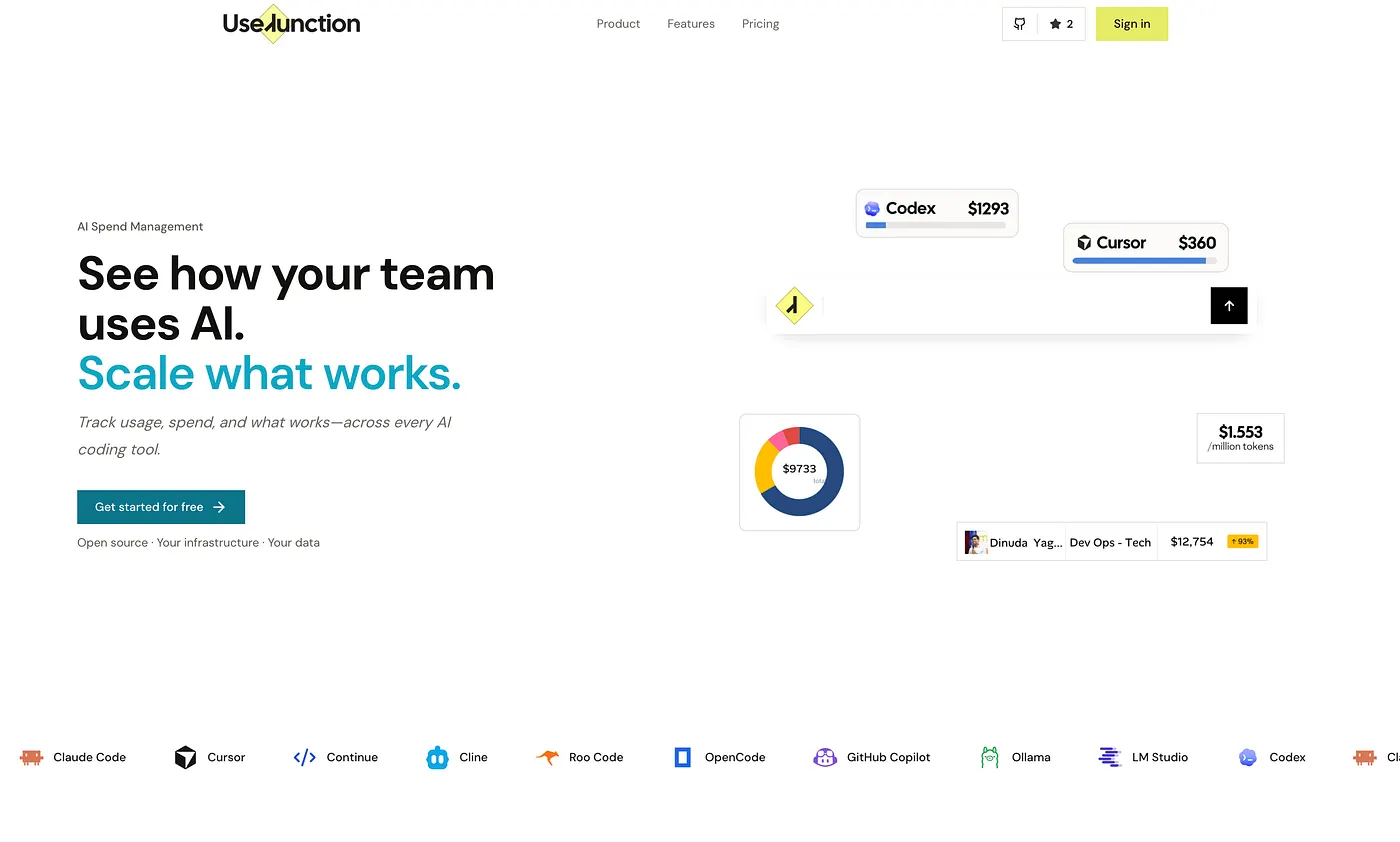
UseJunction is open-source AI coding observability for teams. A lightweight local agent on each developer’s macOS or Windows laptop reports usage signals, and an admin dashboard rolls them up.
- Deploy the dashboard. Use the managed version or self-host it.
- Enroll devices. Developers run a one-line install.
- Choose what is collected. Collection is opt-in per provider account.
- See spend your way. By tool, developer, team, or model, with plan cycles and idle seats alongside.
It reads usage signals only. No prompts, source code, keystrokes, screenshots, or traffic interception. Work-detail collection is optional and can be turned off per person or team.
What should you do once you can see it?
- Reclaim idle seats before the renewal date, not after.
- Move heavy users to the right plan. Developers who hit limits every week are asking for a bigger plan; those who never get close can drop one.
- Bring personal accounts in. See the personal vs company keys guide.
- Set a monthly review. Fifteen minutes on the dashboard beats a quarterly scramble.
- Add policy last. Controls work better once you know what you are controlling.
You cannot cut a bill you cannot explain. Start by seeing it, per tool and per person, before you decide what to change.
How do I get started?
Pilot with one team first. Sign up for the managed version or self-host from GitHub. For the full picture of how this fits into spend management, see AI coding spend management.
Frequently asked questions
How do I see how much my team spends on AI coding tools?
Add up seats and usage-based charges for every tool you pay for, then match them to per-developer usage. Doing this by hand across Cursor, Claude Code, Codex, and Copilot is slow, so teams use a tool such as UseJunction that gathers usage from each developer’s machine into one dashboard.
Why is there no single place to see AI spend?
Each vendor bills separately and shows its own dashboard. Some admin APIs are enterprise-only, and developers on personal accounts do not appear on company invoices at all.
What is the difference between seat cost and usage cost?
Seat cost is a fixed price per person per month, whether or not they use the tool. Usage cost varies with tokens, requests, or agent runs. Seats waste money when idle, and usage charges surprise you when agents run heavily.
Can I see AI spend per developer without reading their code?
Yes. Cost and usage signals such as tool, model, tokens, and plan state are enough. UseJunction does not read prompts or source code, and does not log keystrokes or capture screens.
How do I find wasted AI coding seats?
Compare purchased seats to active usage in each billing cycle. Seats with no activity on enrolled devices, and paid seats with no enrolled device, are the two waste signals to check before renewal.
Can I self-host an AI spend dashboard?
Yes. UseJunction is open source and self-hostable under the UseJunction Community License, or you can use the managed version at usejunction.dev.
See your AI coding stack as one system.
Usage, cost, plans, and seats for every developer and every tool. Self-host it or use the managed version.
Founder of UseJunction
Dinuda is building UseJunction, an open-source observability layer for the AI coding tools, models, and plans engineering teams already use. His work focuses on making fragmented AI systems visible without turning operational data into developer surveillance.